

Teams
Notifications
Tell the team in Slack, Microsoft Teams, Google Chat, Discord, email or a webhook when an agent needs someone, fails or hits a guardrail.
Agentower can post to the places your team already talks when an agent needs someone, fails or reaches a guardrail. Owners set this up in Settings → Notifications.
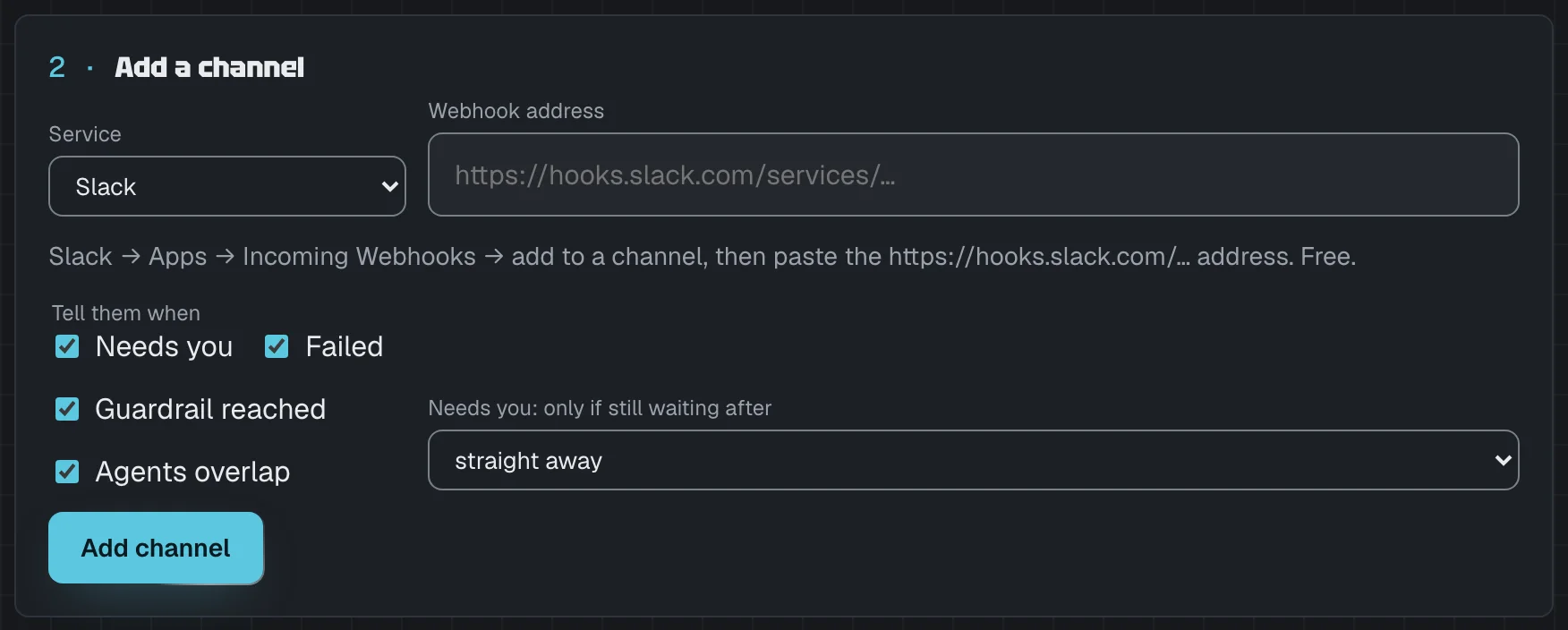
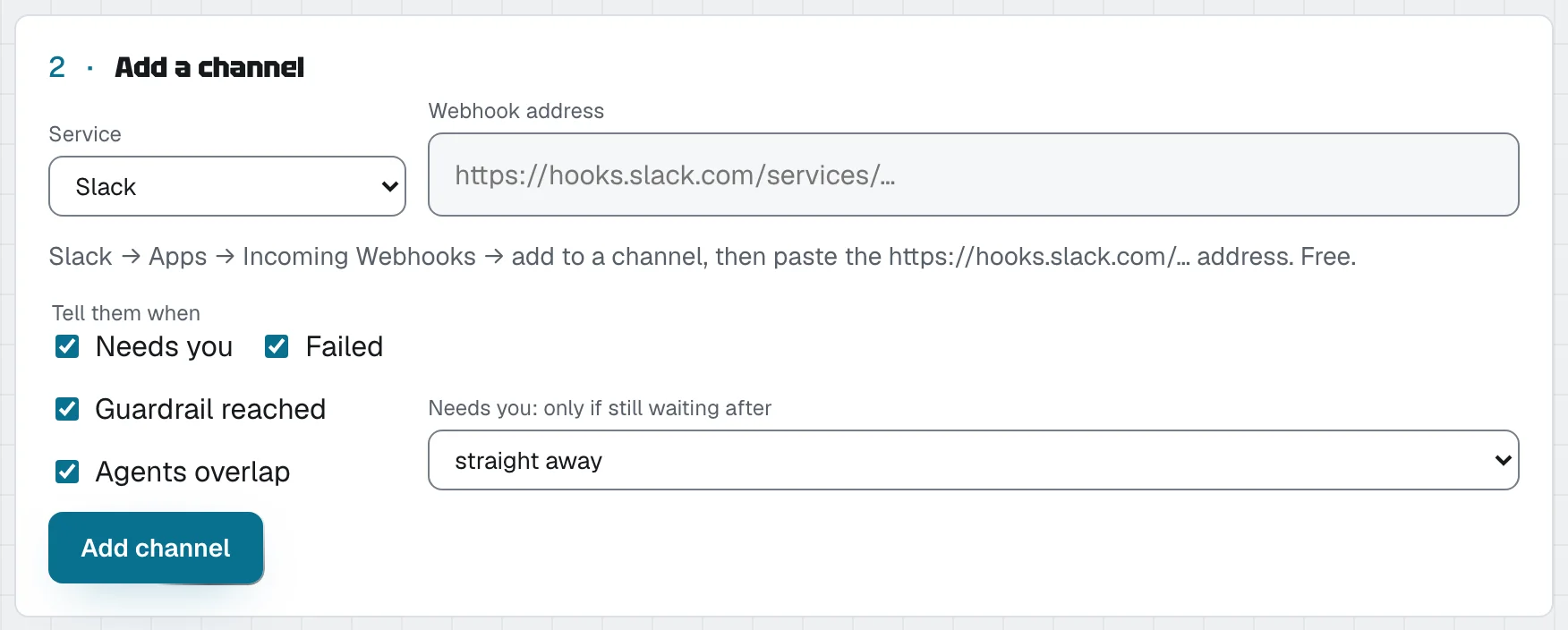
#Add a channel
- In Settings → Notifications → Add a channel, choose the service.
- Paste the address the service gives you (see below), or an email address.
- Tick which events to send (a webhook channel can also take Live counts — the number of open agents in each state, sent about a second after any change, for a live counter on your own site; see Webhooks): Needs you, Failed, Guardrail reached, Agents overlap (two or more agents working in the same project at the same time — at most one message an hour per project; see the board). Channels added before Agents overlap existed don't get it; add the channel again to include it.
- For Needs you, choose whether to send straight away or only if the agent is still waiting after 2, 5, 15 or 30 minutes. A short delay saves the channel from agents that get answered in the terminal a moment later. The same delay applies to Agents overlap: it's sent only if the agents are still working side by side when it's due.
- Press Add channel, then Send test to check it arrives.
A workspace can have up to 20 channels. Each notice goes out once; if the agent has already moved on by the time a delayed notice is due, it isn't sent.
Email channels have a daily limit. A workspace's email channels send at most 20 emails a day between them (UTC days). Agentower also keeps one daily count of every email it sends, for all its users together: once 80 have gone out that day, everything except sign-in links — notification emails, weekly emails, invites — stops until the next day, so sign-in links always get through. A notice that isn't emailed isn't sent later, and the channel's row shows "email limit reached" as its last error. Slack, Teams, Google Chat, Discord and webhook channels aren't affected.
#Where to get each address
| Service | What to paste |
|---|---|
| Slack | Slack → Apps → Incoming Webhooks → add to a channel, then copy the https://hooks.slack.com/… address. Free. |
| Microsoft Teams | In the channel → Workflows → "Post to a channel when a webhook request is received", then copy the address it gives you. Free. |
| Google Chat | In the space → Apps & integrations → Webhooks → add, then copy the https://chat.googleapis.com/… address. |
| Discord | Channel settings → Integrations → Webhooks → New webhook → Copy URL. |
| A teammate's address, or a team list at your company's domain — someone in the workspace, or an address at a workspace member's own company domain (not a public one such as Gmail or Outlook). Other addresses are refused. | |
| Webhook | Any public https:// address of your own. Each request is signed — see Webhooks. |
Agentower checks each address belongs to that service (for example, a Slack channel must be a hooks.slack.com address) and only ever calls those addresses.
#What a message says
Only what the board shows: which project and agent, whose it is, the reason or the guardrail's limit, how long it has waited, and a link to open it in Agentower. For example:
Needs you · Billing API BIL-02 (Maya) — Needs your permission to use Bash · waiting 5 min
Open in Agentower
An overlap message lists the agents instead:
2 agents are working in Billing API at the same time — Peter (BIL-02) · Maya, Sarah (BIL-03) · Tom
Open in Agentower
Messages never include prompts, code, commands or file contents.
In Slack, Google Chat, Discord and Microsoft Teams, project, agent and people's names and the reason are shown as plain text: anything in them that would otherwise become a link, a mention (such as @everyone or @here) or bold, italic or code formatting is shown as typed and does nothing. The only link in a message is Open in Agentower. So a name someone chose can't ping the whole channel or send people to another site. A webhook gets the same values as plain JSON fields — escape them if your own system displays them.
#If a channel stops working
The channel's row shows when it last sent, or the last error (for example "the service answered 404" when a webhook was deleted on the service's side). Delivery is tried once, with a 5-second limit, and not retried. Remove the channel and add it again with a fresh address.
Send test is limited to 10 test messages an hour per workspace, and, like adding or removing a channel, needs a sign-in from the last 7 days (it posts to an outside address).
#Security of addresses
Webhook addresses work like passwords. Agentower stores them encrypted and never shows them again in full — the list shows only the host and the last four characters.
#Alerts in this browser
Separately, each person can choose how their own browser tells them, in Settings → You (the cog beside your name). They need an Agentower tab open; it can be in the background.
- Browser notifications: a system notification when an agent starts needing you while you're looking at another tab or app. Your browser asks permission the first time; on a Mac, System Settings → Notifications must also allow your browser.
- Chime: a soft sound when an agent needs you or stops — even while you're looking at Agentower.
- Speak it: a short spoken sentence saying which agent needs you and why, for example "Billing API: Sarah needs your permission to use Bash." Each agent speaks in your device's most natural voices, in your browser's English (British for en-GB, American for en-US, and so on), with a female or male voice to match its name — Sarah sounds like a Sarah. Agents get different voices as far as your device has good ones; after that a good voice is repeated rather than a robotic one used. For the most natural sound, download a Premium or Enhanced voice: on a Mac, System Settings → Accessibility → Spoken Content → System voice → Manage Voices; on Windows, Settings → Time & language → Speech → Manage voices. Hear the voices in the same settings plays a sample. Only voices on your device are used — the text is never sent to a speech service. If your device has no on-device voice, it stays silent and says so. While an agent is speaking, a small sound-wave shows beside its name on its card and in its chat.
- Send a test plays what you've switched on, with a sample agent.