

Start here
Getting started
Sign in, connect Claude Code on your computer and see your first agent on the board — about five minutes.
You need a computer with Claude Code installed (macOS, Linux, or Windows with Git for Windows). Nothing else to install: Agentower runs in your browser.
#1. Sign in
Go to the sign-in page and enter your work email. We send a one-time link that works for 15 minutes — there are no passwords. You can also use Continue with Google. (Microsoft sign-in is coming.) If the link doesn't arrive, see The sign-in link doesn't arrive.
The first time you sign in, Agentower makes a workspace for you, and you're its owner. If a teammate sent you an invite, open their link and press Join to join their workspace — see Invite your team.
A new workspace starts with Start your free trial: press Add a card and start free and add a card in Stripe Checkout. Nothing is charged during the free period — 14 days, or 6 months while one of the 5 beta free places is open — and you can cancel before it ends in Settings → Billing. During the 14-day trial you press Continue for 24 hours each day you use Agentower. See Plans and billing.
#2. Create an ingest key
Once the card is added, your workspace opens on an empty Agents board with a Connect your first agent panel. Press Create key there (or open Keys & connections and create an ingest key). Name it after the computer, such as "Work laptop" — one key per computer means you can revoke a lost laptop without touching the others.
#3. Connect Claude Code
On macOS or Linux, the panel shows one command with your key already filled in. Run it in Terminal — step by step below if you haven't used Terminal before. It looks like this:
curl -fsSL https://agentower.com/install | sh -s -- at_live_your_key_hereIt saves your key where only you can read it, installs the hook and adds it to Claude Code's settings (backing up the old files first), and switches on token usage so each agent shows its tokens and an estimated cost (counts only, never your prompts — add --no-usage to leave it off). The command contains your key, so only run it on your own computer. What it changes, line by line, is in Connect Claude Code.
#Step by step, if you've never used Terminal
- Copy the command. Press Copy beside it in the panel. Don't type it out — it holds your key, and one wrong character stops it working.
- Open Terminal. On a Mac, press ⌘ + Space, type Terminal and press Enter. On Linux, open your terminal app the usual way (often Ctrl + Alt + T).
- Paste and run. Click in the Terminal window, press ⌘ + V (on Linux Ctrl + Shift + V), then press Enter.
- Check it worked. After a few lines it should end with:
``text Connected to Agentower. Start a Claude Code session in any project (run: claude). It appears on your board within seconds. ``
If it ends with something else, see Connecting your first agent fails.
- Start an agent. In the same window, go into one of your project folders — type
cd, a space, the folder's path (or drag the folder onto the window), and press Enter — then typeclaudeand press Enter. On the board, "Waiting for your first agent…" disappears and your agent's card appears within a few seconds.
To connect this computer to a different workspace later — or back to your own — run the same command with that workspace's key (copy it from its Keys & connections page). Your previous settings are kept as backups: ~/.agentower/claude-code.env.bak-<date-time> and ~/.claude/settings.json.before-agentower-<date-time>.
On Windows, or if you'd rather do it by hand, the rest of the Keys & connections page is a short set of copy-and-paste steps with your key already filled in: save the address and key, install the hook, and optionally add Claude Code's telemetry settings so each agent shows its token use and an estimated cost. Details are in Connect Claude Code.
#4. Start a session
Open a new Claude Code session in any repository (run claude). Within a few seconds it appears on the Agents board as a card, under a project named after the repository, with a first name such as Peter and a short ID such as BIL-01.
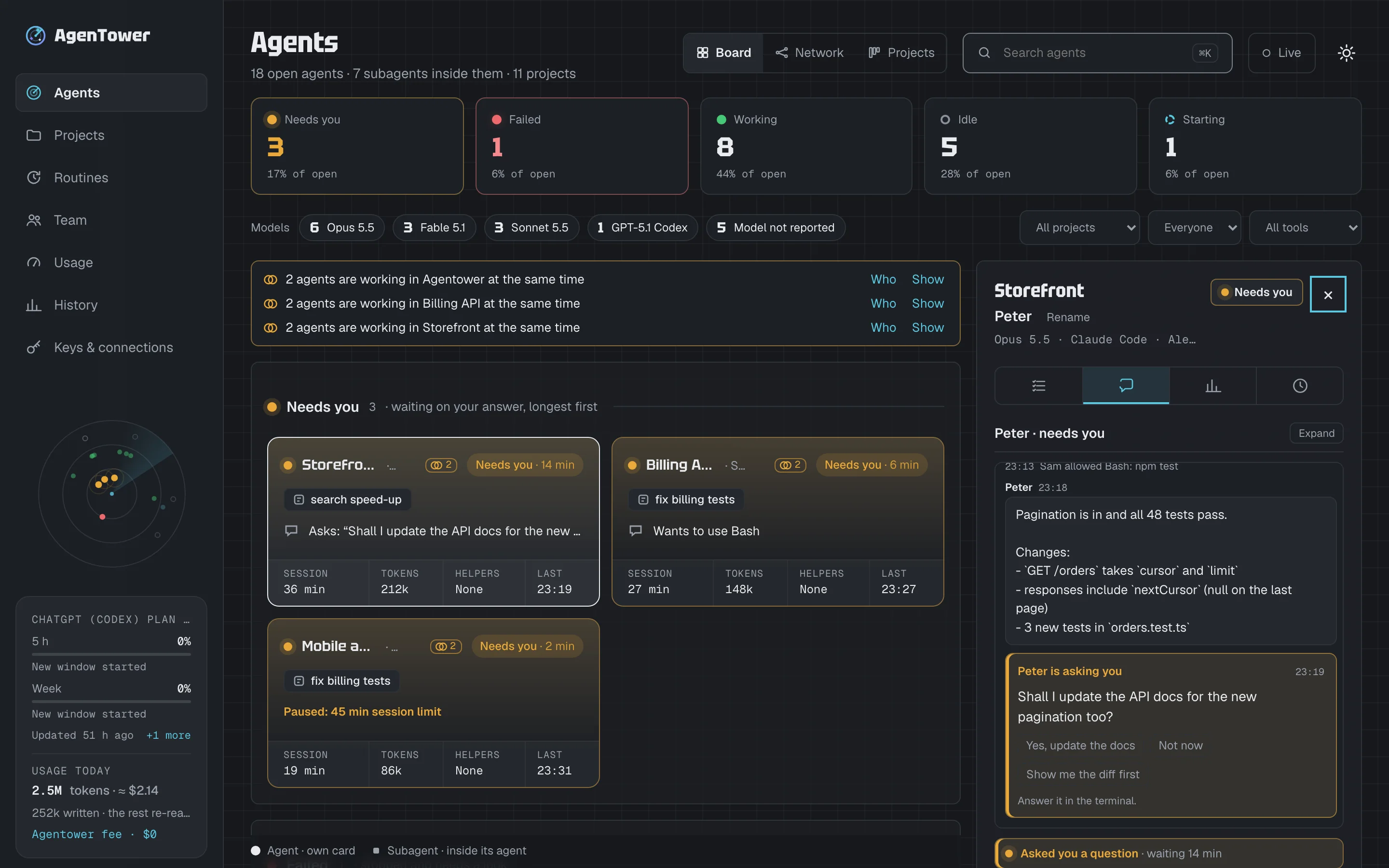
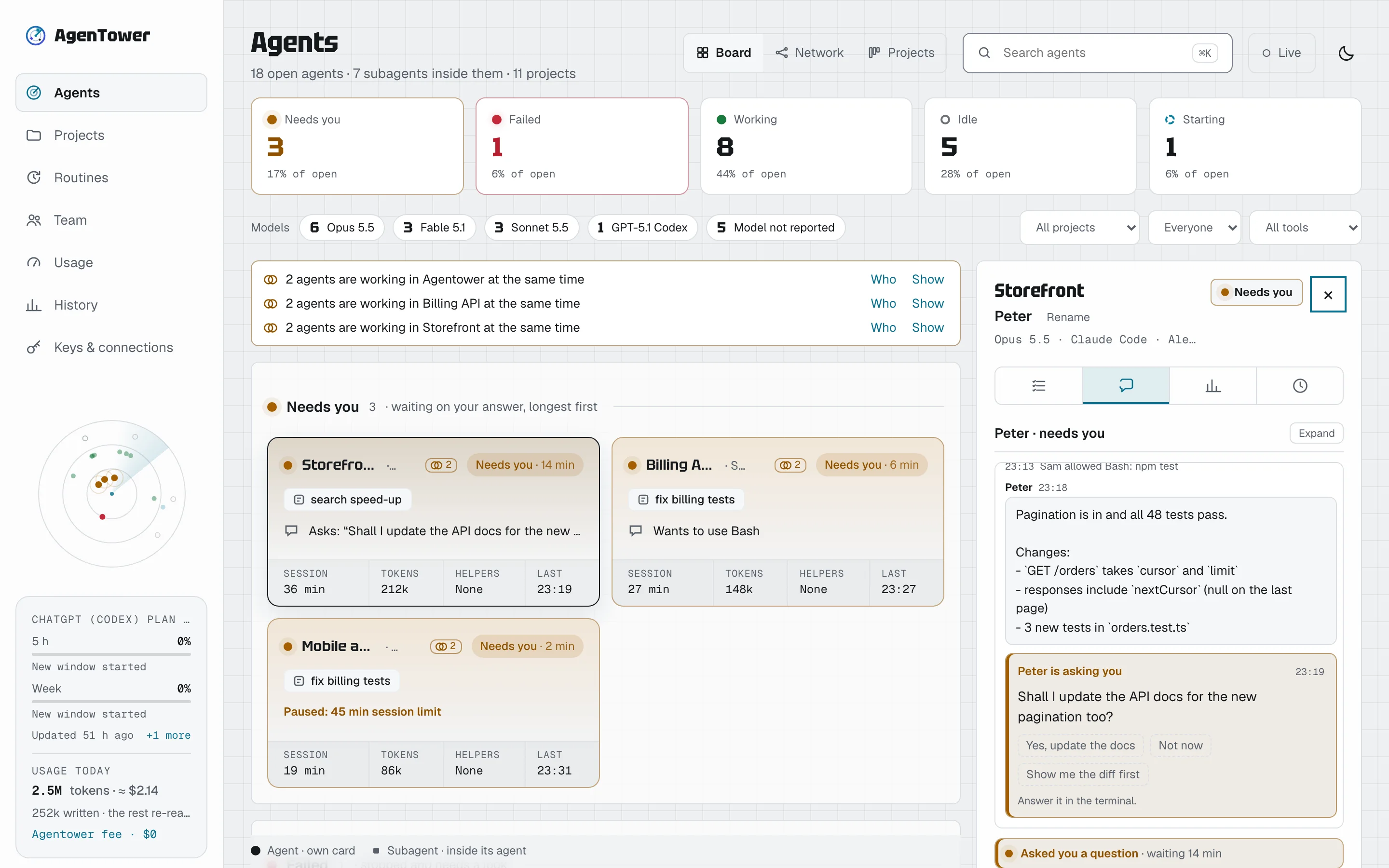
Settings are behind the cog beside your name, at the bottom of the sidebar (in the menu strip on a phone).
That's it. From here:
- Learn what the colours and sections mean in The Agents board.
- Let people approve and reply from the app: Answer agents from Agentower.
- Bring your team in: Invite your team.