

Everyday use
The Agents board
What the board shows, what each state and colour means, and how agents and subagents appear.
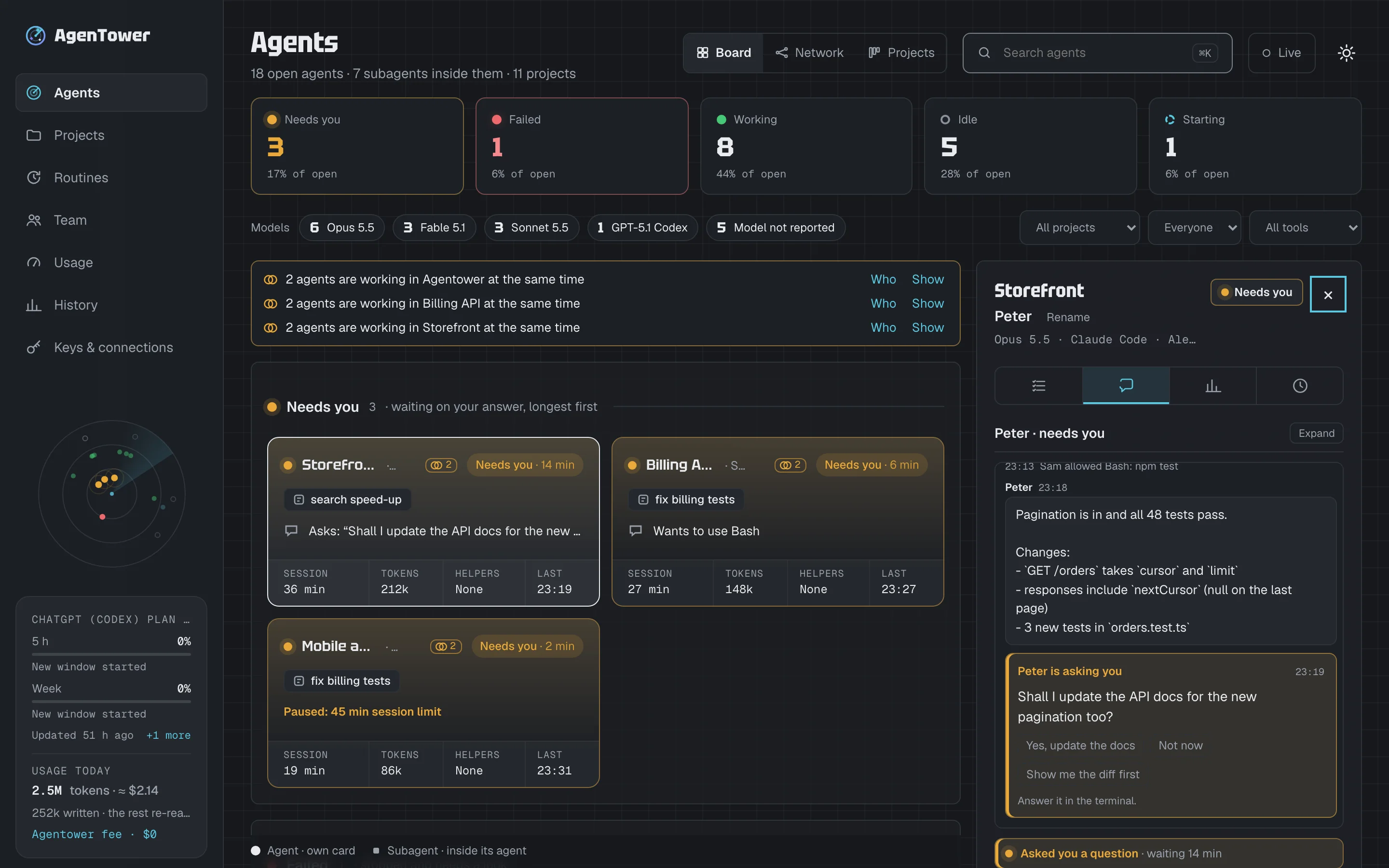
Agents is the main screen. Every open agent your team runs has one card, and the ones that need someone are at the top. It updates live — there's nothing to refresh.
#The states
Every agent is in one of six states. The same names are used on screen, in notifications and in the API.
| On screen | What it means | How it looks |
|---|---|---|
| Needs you | Blocked mid-task, waiting for a person: a permission request, a question, a plan to review, a guardrail, or a turn that ended with a question | Amber dot that pulses gently |
| Failed | Stopped by an error (for example a rate limit) | Red dot |
| Working | Working on a task | Solid green dot |
| Working in background | The agent's own turn ended, but a helper or command it started in the background is still running | Dashed green ring; the card's state pill says Background |
| Idle | Finished its turn; the session is still open and waiting for your next instruction | Hollow grey ring |
| Starting | The session is starting and hasn't taken its first step yet | Dashed blue ring |
| Done | The session has closed | Dim grey dot, folded away |
Only Needs you and Failed are allowed to stand out: their cards take a soft tint of the state's colour at the top and around the edge. Everything else stays calm. Colour is never the only signal — each state also has its own shape, label and section.
Working in background. When Claude Code hands work to a background helper (the Agent tool with background running) or starts a command in the background, the main turn can end while that work carries on. The card then stays in the Working section, after the normal Working cards, with a dashed green ring, a faint green tint from its top-left corner and the state pill "Background · 4 min". Its Now line says what is still running: "Helper is Committing work record v1 changes" (the helper's task with Agent chats on, otherwise its kind, such as "Helper is general-purpose"), or "Running in the background" for a command. The Working tile says "N in background" under its number. It goes back to Idle once the last helper or command has finished. Claude Code sends no signal when a background command ends, so a command counts for 30 minutes at most, and until the agent starts its next turn; a helper counts until it stops, or for 30 minutes without a sign of life. Needs the connector's hook v8 (plugin 0.4.2).
Idle isn't Needs you. An idle agent has done what it was asked and is simply waiting for the next task. The Needs you count shows only agents that are blocked.
#Sections and order
Cards are grouped by state, most urgent first: Needs you, Failed, Working, Idle, Starting, then a folded Inactive section. Agents that finished today are folded into a "+ N done today · show" line at the bottom.
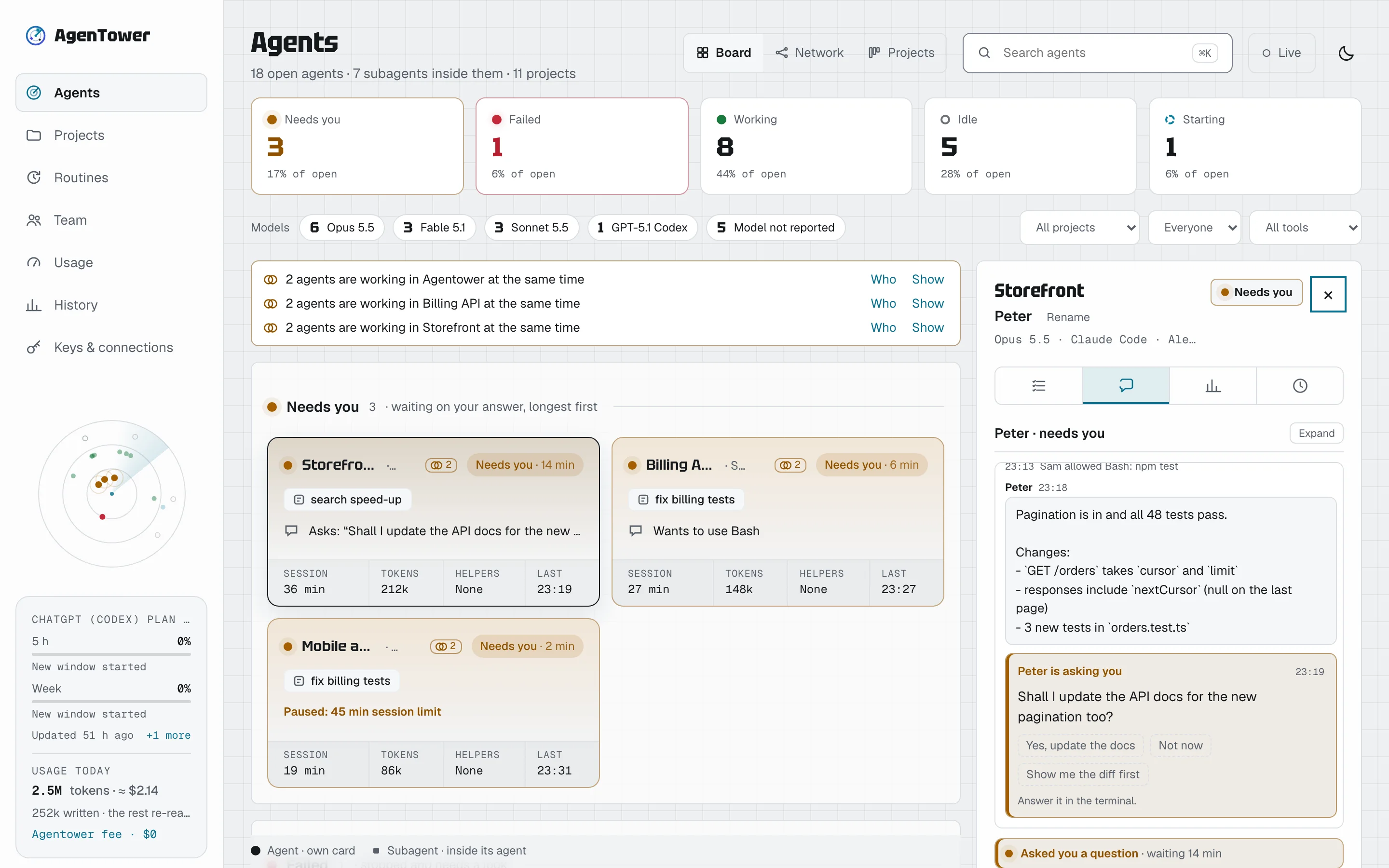
Order inside every section is the same: the agent that has used the most tokens this session comes first, and when two are equal the one active most recently. Background work is mixed into Working the same way. The board sorts when it loads, refreshes or you change a filter; after that cards stay where they are while their numbers tick up, so nothing moves under your cursor, and a card that arrives takes its sorted place. A card's Last time is that last use, and an idle card's time ("Idle · 2 h 5 min") counts from it. The selected card is shown a shade lighter, with a thin outline.
Inactive holds idle agents nobody has used for more than a day — sessions left open in a terminal you've moved on from. They sit in a section at the bottom, "Inactive · N · idle for over a day", folded away until you select it; the board remembers in this browser whether you left it open. They don't count in the Idle tile, which names them under its number instead ("2 inactive"). Give one a new task and it's back in Working straight away. You can also set an agent aside here by hand — see Move an agent to Idle or Inactive.
The row of status counts under the header is also the colour key. Each tile shows the state, how many agents are in it, a thin bar in the state's colour for its share of all open agents (hover it for the percentage), and a short line under the number: for Needs you, how long the longest has waited ("waiting 6 min"); for Failed, the latest ("latest 9 min ago"); for Working, how many are running and how many helpers are at work inside them ("3 running · 2 helpers"), or how many are in the background; for Idle, how many are inactive ("2 inactive") or "used today". A hidden state's tile says how many it hides ("4 hidden"). Under it, a grey Models row shows how many open agents use each AI model; select a model to show only its agents. A model with agents working right now is tinted green — the more of its agents are working, the stronger the green. The filters sit at the end of the Models row. The board's sections and the details panel start on the same line below it.
The key to shapes (agent · subagent) is a thin bar at the bottom of the board that stays in view as you scroll, so it's there on small or low-resolution screens too.
#Hide a state
Every section can be hidden: select its header (Hide, then Show to bring it back), or open All states beside the filters and untick the states you don't need. The menu then says how many are shown, for example "States · 3 of 5", and Show all brings everything back. Hiding Idle hides Inactive too. A hidden section keeps its header and count, and its tile says how many agents it hides. The choice applies to the Board and the Network view alike and is remembered in this browser.
#Move an agent to Idle or Inactive
Sometimes the board knows less than you do: a session you've finished with still shows as Working, a Failed agent has been dealt with, or a Starting one never took its first step. Owners and the project's approvers can tidy these by hand:
- Move to Idle shows a Starting, Working or Failed agent as Idle — waiting for your next instruction. It's in the details panel, beside the state, and Move all to Idle is on the Starting and Failed section headers.
- Move to Inactive sets an agent aside with the Inactive agents, folded away under Idle. It's in the details panel too, and Move all to Inactive is on the Starting, Failed and Idle section headers. Move back to Idle in the panel brings one back.
Agents that need you are never moved: their request is still open. Neither are subagents or closed sessions. Moving doesn't stop anything on the computer — the agent's next real step in the terminal moves it on as usual, and brings a set-aside agent back to the board. Each move is recorded in the audit log. A person can make up to 10 moves a minute (12 agents at a time); past that the button says "Too many moves — wait a minute".
#When an agent closes by itself
A session closes when the tool ends it, or when Agentower hears nothing from it for a while (the terminal was closed or the computer went to sleep):
| State | Closed after this long with no signal |
|---|---|
| Starting, Working | 30 minutes |
| Idle | 4 hours |
| Needs you, Failed | 12 hours |
With the Agentower status line set up, an open terminal also counts as a sign of life: its status line checks in whenever its numbers change and at least every 15 minutes, so a quiet agent stays on the board while its terminal is open. The times above then count from the last activity or check-in, whichever is later — for example, an idle agent is done 4 hours after its terminal was closed.
If you use a closed session again, it reopens by itself on the board.
#Agents and subagents
An agent is a round dot with its own card. A subagent — a helper an agent starts for part of its task — is a small faded square in its parent's colour. Subagents always appear inside their parent's card and in its details panel, never as cards of their own.
A card's subagent squares sit on its Now line, and the Helpers figure at the bottom of the card says how many are open and whether any are working: "2 · active", "1 · idle" or "None". Smaller cards show the squares with a count such as 2/3 (working / open); hover it for "1 of 3 working".
#What each agent is working on
With Agent chats on, hovering a card shows what the agent is working on — "Working on: Chat composer redesign" — and each subagent has its own task, for example "Finding the answer handler" (in the details panel, and on a background card's Now line). They come from Claude Code: the session's name (yours, if you named it, or the short title Claude Code gives it) and the short description an agent writes when it starts a subagent — at most 80 characters, with code removed. Only people who may approve the project see them. With Agent chats off, only the subagents' kinds show.
#Agents working in the same project
When two or more agents are busy in the same project at the same time — Starting, Working or Needs you — they may be changing the same code. The board says so, quietly:
- a small mark on each of their cards — two overlapping rings and the number of agents. Click it for who's there and what each is working on ("Peter — Chat composer redesign · working 4 min"); click one to open its panel, or Show only to narrow the board to that project;
- a line above the sections: "2 agents are working in Billing API at the same time", with Show. Show narrows the board to that project (and clears the other filters); press it again (Show all) to see everything. Who opens the same list as the mark.
It counts top-level agents only: an agent's own subagents never count, and an agent that is Idle alongside a busy one doesn't either. Two sessions of your own count, as do agents of different people. Agents under Unsorted never count (they have no repo in common).
Agentower doesn't see which files agents touch. When two of the agents are both asking permission to edit or write the same file right now, the line adds it — "same file: src/app.ts" — for people who can see approval details; everyone else sees just the project.
Switch it off for a project on its page: Warn when agents overlap (see Projects). A notification channel can also be told, with Agents overlap.
#Names and short IDs
Each card leads with the project's name, then the agent's first name — Peter, Sarah, John — so you can say "Sarah needs you" instead of reading out a code. A new agent gets a name no other open agent in your workspace is using. Anyone who can answer an agent can rename it.
Every agent also keeps a short ID such as BIL-02: three letters from the project's name and a number that counts up for each new session in that project. The ID never changes, so the API, exports and the MCP server use it, and with the Agentower status line each terminal shows its agent's name and ID first, so you can match a terminal to its card. Search finds agents by name or ID.
#Search and filters
- Search (⌘K or Ctrl+K) finds agents by project, ID, reason, tool, model or state.
- Filters, beside the Models row, narrow the board to one project, one person or one tool. Show my agents shows only yours.
- All states hides or shows whole states — see Hide a state.
- The same filters apply to the Network view.
#What a card shows
Every card on the screen is the same size, chosen by how many agents are open, and every line of text stays on one line; the full text is in the details panel.
For up to 24 open agents, each card has four rows:
- Who and state: the project, then the agent's name and model ("Billing API · Peter · Opus 5.5"), and on the right the state pill with how long it has been in that state — "Needs you · 4 min". The project and the whole pill always fit: on narrow cards (340 pixels or less) the agent's name and model move to the start of row 2, and the pill's time shortens to whole hours or days ("Idle · 19 h"; the full time is in its tooltip and the details panel). Hover the project for its full name.
- Work stream: a tag with its work stream ("docs · landing", or "No stream yet"), and the person's name on the right when your workspace has more than one person.
- Now: a small icon and one short phrase saying what it's doing (below) — or a guardrail note, when one applies.
- Numbers: Session (how long the whole session has run — hover for when it started), Tokens, Helpers (its subagents) and Last (when you last used it; "now" while it's working).
With 25 to 48 agents, cards keep only the first and third rows; with 49 or more, each is a single line: dot, project, subagents and the state with its time. Rather than squeeze cards below 290 pixels wide, the board shows one column fewer. On narrow cards the person's name gives way first; the four numbers always stay, set closer together.
Times are always written out: "<1 min", "4 min", "2 h 10 min", "1 d 2 h".
#What it's doing
The Now row turns each step into a short phrase:
| State | What the Now row says |
|---|---|
| Working | Writing a reply · Reading files (src) · Editing files (src), or Editing 3 files (src) once the turn has changed more than one · Running tests · Building the app · Installing packages · Committing · Pushing · Opening a pull request · Deploying (staging) · Searching the web · Running subagents · Planning the next steps · Using a tool (for example an MCP server's name) · and, when nothing else fits, Running with the program's name, for example "Running curl" |
| Working in background | Helper is … its task (or its kind), or Running in the background |
| Needs you | Asks: "…" (the full question is in the details panel), Wants to use Bash, or the reason it's waiting |
| Idle | Waiting for your next instruction |
| Failed, Starting | The reason, for example "Stopped: rate limit" or "Session started" |
The Agentower hook (version 9, or plugin 0.4.3) works out the kind of step on your computer and sends only that, with at most one name — a program, an environment or a top-level folder — never the command line, its arguments or any file's contents. The folder in brackets is the top-level folder in the project, and shows only for projects with Work details on. With an older hook, with Cursor, or after Agentower's live service restarts (until the agent's next step), the phrase comes from the tool's name alone — "Running a command", "Editing files", "Reading files". See Privacy.
#Live, Connected and Reconnecting
The pill in the header shows the board's connection:
- Live — at least one agent (or a subagent inside one) is working or starting, and its updates arrive as they happen.
- Connected — the board is connected, but nothing is working right now.
- Reconnecting… — the connection was lost; the board catches up as soon as it's back.
After you sign in, the board appears at once with your agents as they are; if nothing has arrived yet it shows grey placeholder cards, never "Nothing open".
If the live connection can't be held, the board checks for updates every few seconds instead; the pill's tooltip says so. See Troubleshooting if it stays on Reconnecting.
#The radar
The small radar in the sidebar shows every open agent as a dot — the closer to the centre, the more it needs you. Hover over a dot (or Tab to the radar and use the arrow keys) to see the agent's name and project; select it to open its details panel, on any page. Select anywhere else on the radar to jump to Needs you.
#On your phone
The board works the same on a phone: the sidebar becomes a strip at the top, cards stack in one column and show fewer details so nothing overlaps, and the count tiles wrap onto two rows. The details panel opens full screen.