

Everyday use
The details panel
Everything about one agent, and the place to answer it, message it or let it past a guardrail.
Select any card (or any agent in the Network view, or its dot on the sidebar radar) and its details panel opens on the right, level with the board's first section. It's the one place to act on an agent; the terminal keeps working as usual alongside it.
#What it shows
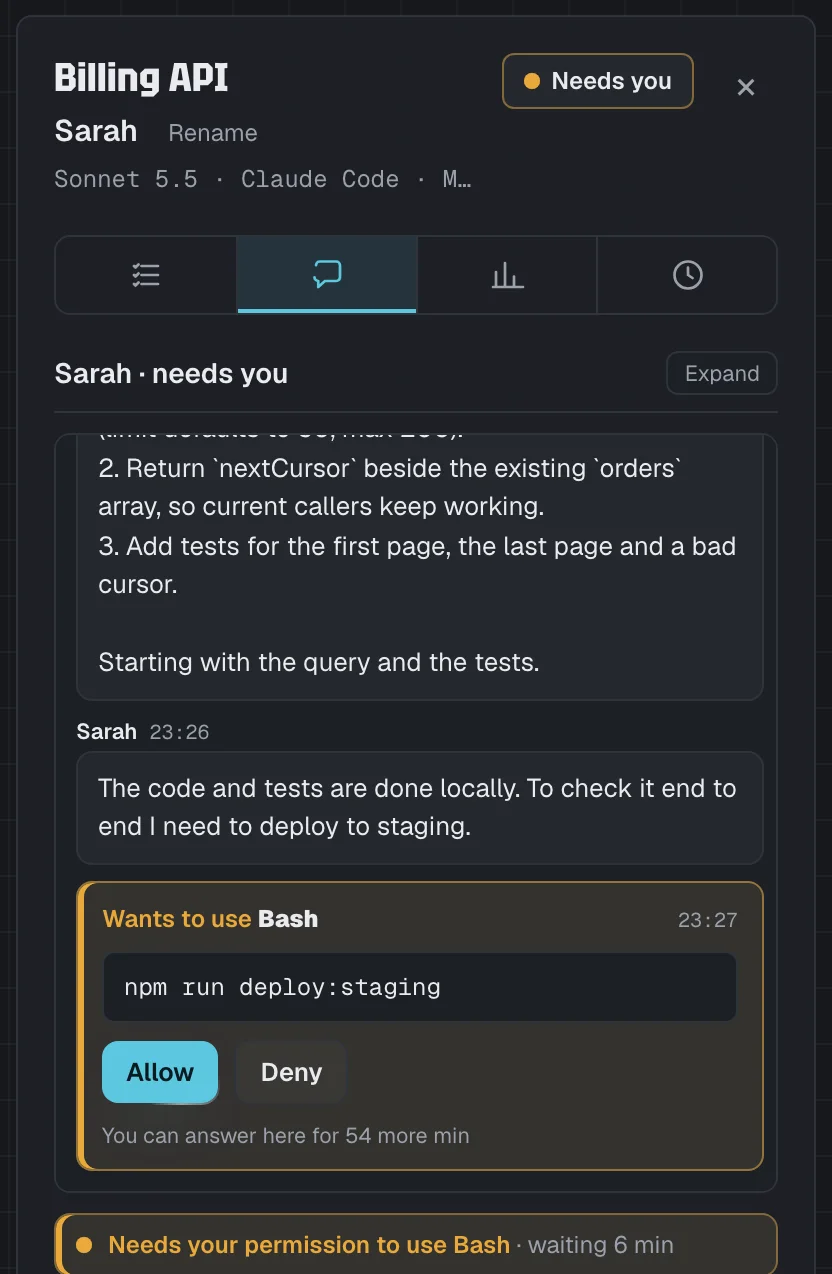
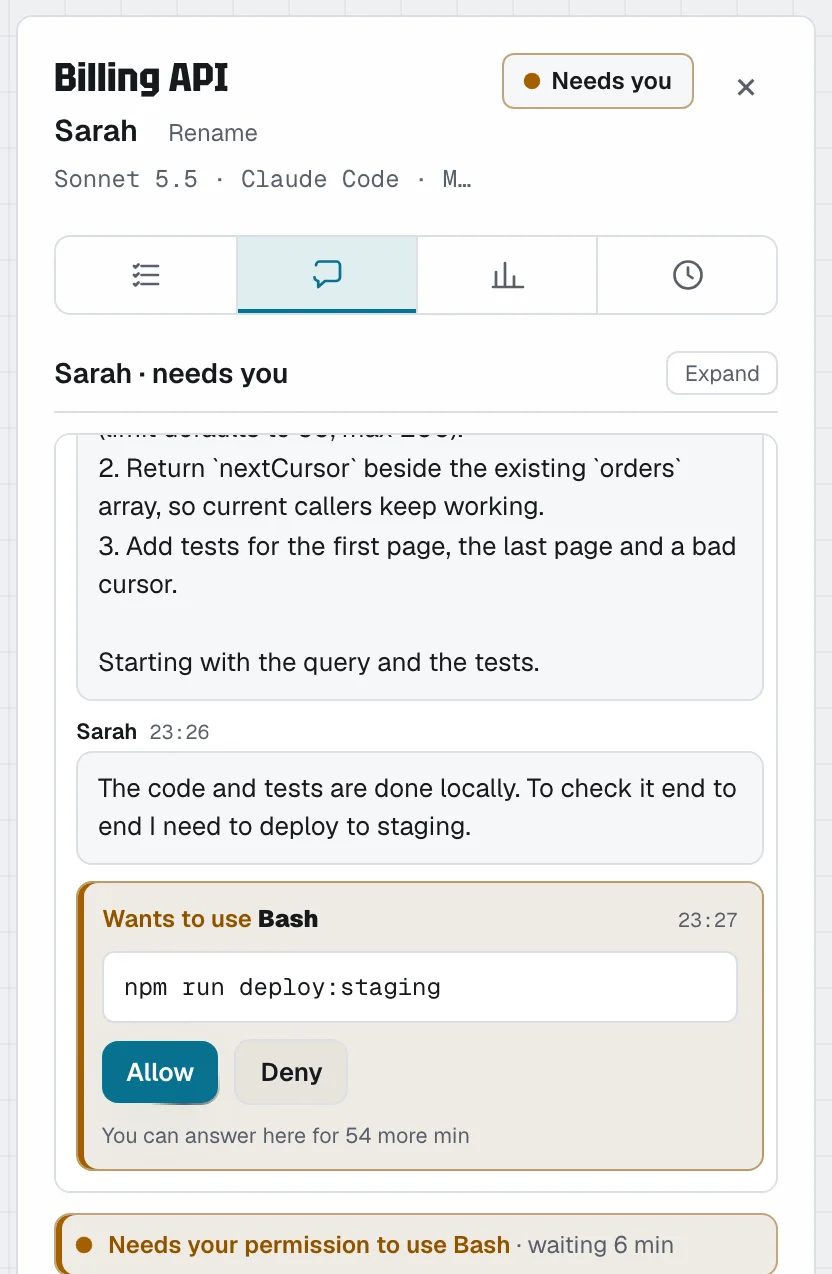
At the top: the project (hover it for the agent's short ID, such as BIL-02), then the agent's name and its details — the AI model, the tool, who runs it and, when your agents run on more than one kind of machine, the machine (Mac, Linux, Windows or cloud) — with the state. Owners and the project's approvers also see Move to Idle and Move to Inactive beside the state (below). Under that, four tabs — Work · Chat · Stats · Log (hover an icon for its name). The panel opens on Work the first time, then remembers the tab you used last in this browser.
Work — what the agent did, by work stream and then turn by turn, newest first, in labelled blocks:
- Stream — the work stream's name. Owners and the project's approvers can Rename it here; a rename moves only this agent, so agents on the same branch can each have their own stream.
- Why · your instruction — the instruction the turn started with (approvers, with the project's Work details on).
- What changed — marked "Verified from git": how many files are new and edited, lines added and removed and commits, then each step (files tagged NEW or EDIT, test runs, commits, the branch pushed, pull requests) and the last test result.
- Agent's summary — the agent's own closing message, in a dashed box marked "In its own words · not verified" (approvers, with Work details on).
See The work record.
Chat — only the chat with the agent (subagents have no chat: when Chat is your last tab, a subagent's panel shows Stats):
- The conversation: what the agent said, its questions (with their options to pick, when it offers some), permission requests with Allow and Deny, plans to read and approve, your team's messages and short lines for what happened — see Chat with an agent.
- A guardrail pause, as a card in the chat, with Approve to continue for owners and the project's approvers.
- A status line pinned above the box to reply, when the agent needs you or has failed: why, and for how long — for example "Needs your permission to use Bash · waiting 6 min".
- The box to reply: one slim bar with the message box (it grows up to five lines), the hold-to-talk mic and Send. Enter sends and Shift+Enter starts a new line (on a phone, Enter is a new line and the arrow sends). Hold the mic — or ⌥ Space (Alt+Space) — while you speak; it turns blue and shows how loud you are while it listens. Quick actions (Commit, Run the tests…) sit just above the bar once the agent's turn has finished.
The agent's messages and questions, and answering or messaging it from the panel, need Agent chats switched on for the workspace. While it's off, the chat says "Agent chats are off for this workspace." — owners get a Turn on in Settings link. Only people who may approve the project's agents can read its chat; everyone else sees the status line.
Stats
- Copy resume command, at the top: copies the command that reopens this session in its terminal (Claude Code and Codex). It's there for your own agents, and for owners on every agent — the session's ID is what lets a key report for that session, so nobody else gets it.
- Session: when it started, how long it has run, its last signal, and how long it has been waiting or idle — and, with Agent chats on, what it's working on.
- Usage: tokens in and out, and an estimated cost at API prices (when the tool reports them).
- Subagents: how many are working now and how many are open, then each one with its task (with Agent chats on), what it's doing and for how long. A subagent's own panel shows this tab in place of Chat.
Log
- Timeline: each change of state, with the reason.
#Move to Idle or Inactive
When the board shows an agent as Starting, Working or Failed but you know it's done, Move to Idle shows it as Idle — waiting for your next instruction. Move to Inactive sets it aside with the Inactive agents, folded away under Idle; Move back to Idle undoes that. Owners and the project's approvers see both buttons; agents that need you, subagents and closed sessions can't be moved. Nothing stops on the computer: the agent's next real step moves it on as usual. Each move is in the audit log. See the board.
#Where to act
What you can do depends on the tool, your role, whether Agent chats is on, and what the agent's computer allows (its answers from Agentower setting — off unless whoever runs it chose otherwise):
| Situation | In the panel |
|---|---|
| Asking permission, Agent chats on | Allow or Deny in the chat — answers that permission prompt, as the terminal would |
| Asking permission, but Agentower can't show all of what it would allow | Deny only, with "Approve this in the terminal — Agentower can't show all of it." (the detail was cut to fit or had invisible characters, the tool's input isn't shown at all — MCP tools, Task — or it's a file change — Write, Edit, MultiEdit, NotebookEdit — where only the file's path is shown) |
| Asking a multiple-choice question, Agent chats on | The question with its options — one click answers a single question; for several questions, or several answers to pick, choose and press Send answer; or Or type your own answer. Answers it in the terminal as if you'd chosen there (how) |
| A plan ready for review, Agent chats on | The plan as plain text, with Approve plan and Keep planning. A plan over 12,000 characters, or with characters Agentower had to remove: Keep planning only, with "Approve this in the terminal" (how) |
| Answers from Agentower are off on its computer | The message bar stays, greyed out, with "Answers from Agentower are off on this computer · How to turn on" (the link goes to the setting). No Allow, Deny or answer options; answer it in its terminal |
| Its computer accepts answers only from the person running it, and that isn't you | "Only Maya can answer this agent." (with their name) |
| Any open Claude Code agent, Agent chats on | The chat, with quick actions (Commit, Commit and push, Run the tests, Carry on, Stop and summarise) and hold-to-talk. Messages are requests, not consent — the agent may still confirm in the terminal (why) |
| Agent chats is off | "Agent chats are off for this workspace." Owners get Turn on in Settings; everyone else is asked to get an owner to turn it on |
| Paused at a guardrail | Approve to continue on the card in the chat (owners and the project's approvers) |
| You're a viewer, or not an approver for this project | A note saying who can act |
| The workspace's Team plan ended and you didn't create the workspace | You can look but not act — see When a Team plan ends |
| Codex | Allow or Deny only; type anything else in its terminal |
| Cursor | A note: answer in Cursor |
How answering works, and what happens if someone answers in the terminal first, is in Answer agents from Agentower.
#Rename an agent
Press Rename beside the agent's name, type a new one and press Enter (Esc cancels). Names are up to 24 characters — letters, numbers, spaces, hyphens and apostrophes — and two open agents can't share a name. Anyone who can answer the agent can rename it; it's recorded in the audit log. The short ID doesn't change.
#On a phone
On a narrow screen the panel opens full screen. Close it with the × in its header.